






































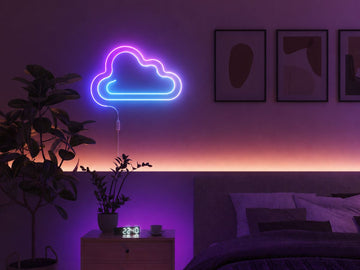
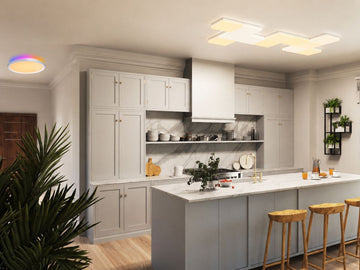
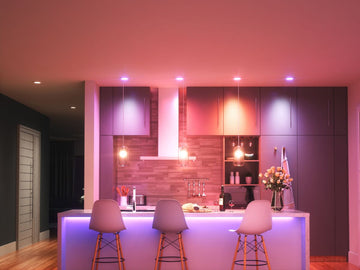


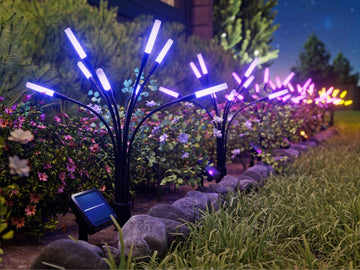






































Shop Smart Lighting
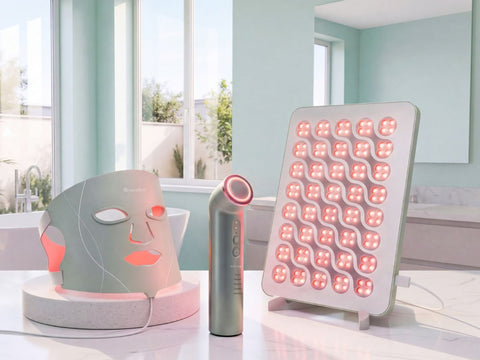
Shop Light Therapy Devices
Shop All Nanoleaf Products


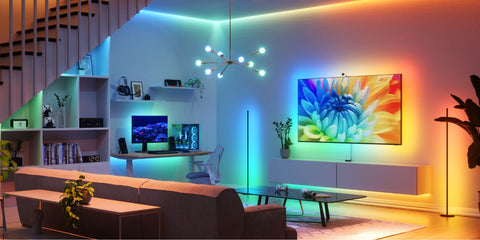
Browse all Nanoleaf products for unique customizable smart lighting essentials, gaming setup accessories, and wellness devices, designed to elevate your home and lifestyle.

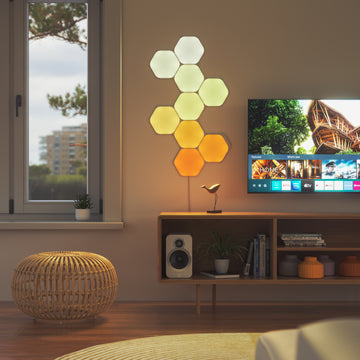
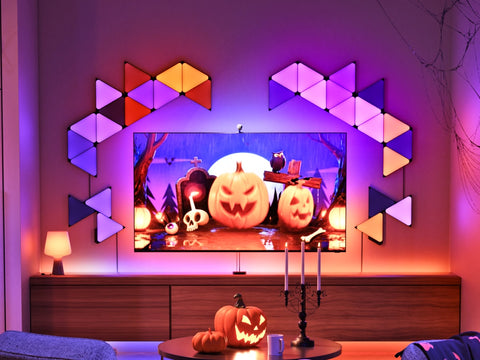
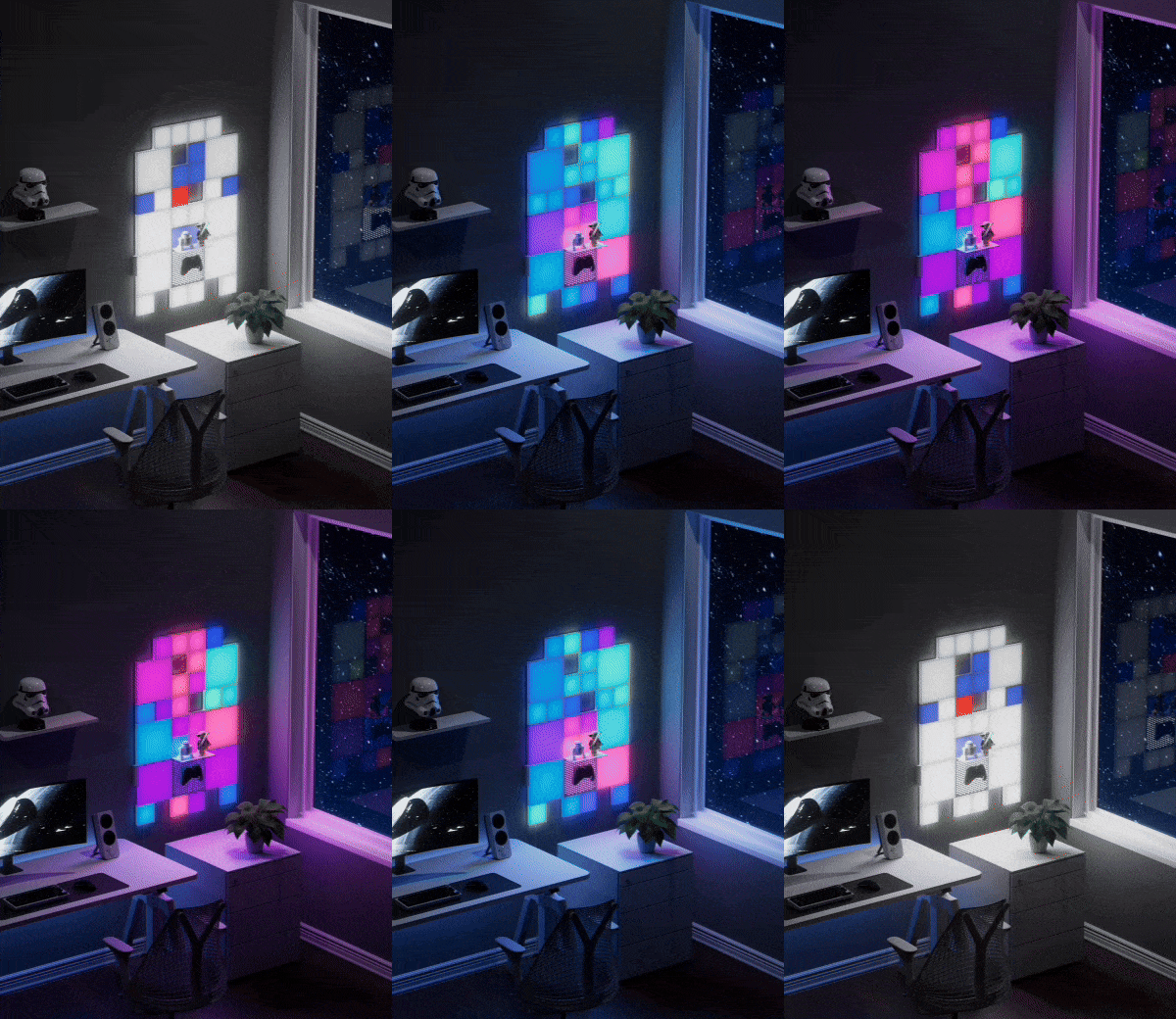
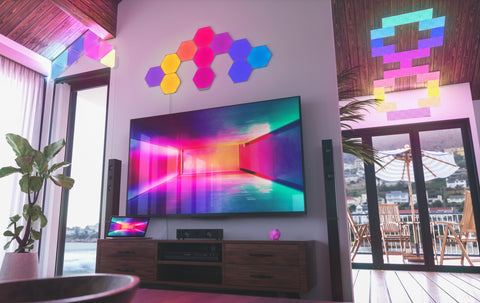
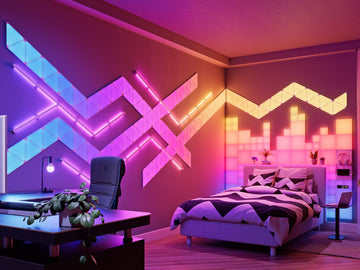
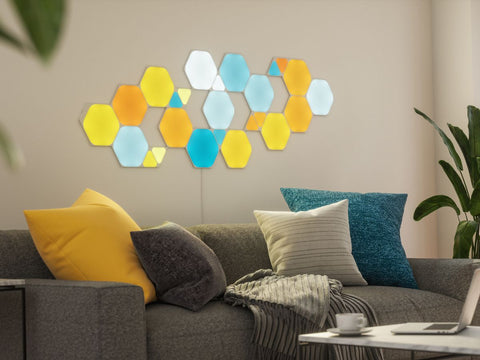
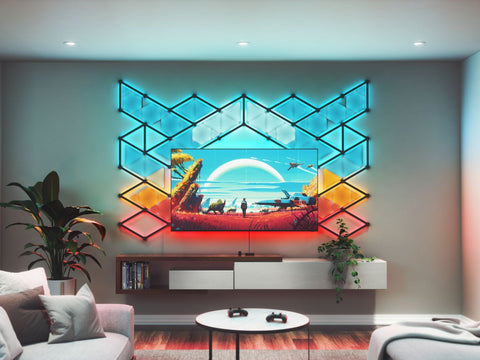
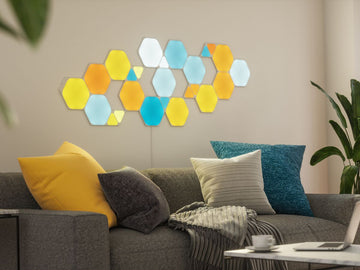
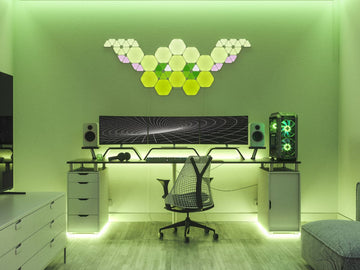
Nanoleaf Shapes Starter Kits
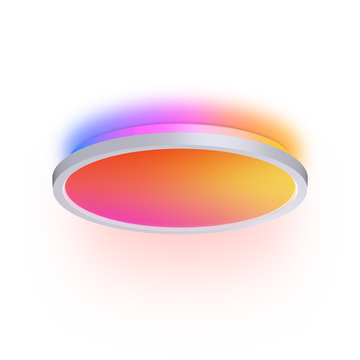
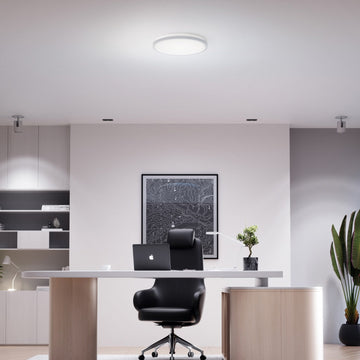
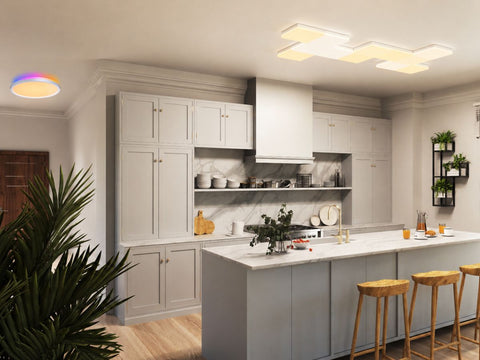
Nanoleaf Smart Ceiling Light

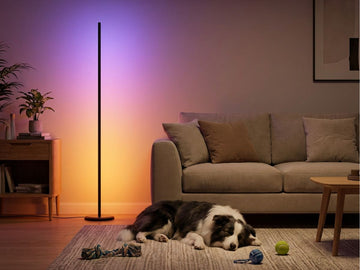
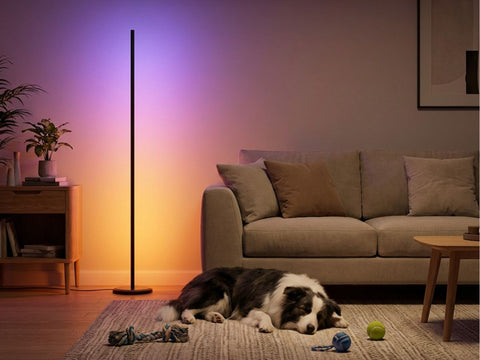
Nanoleaf Smart Floor Lamp
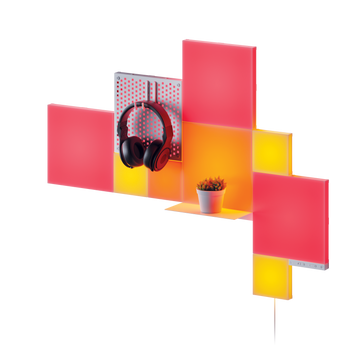
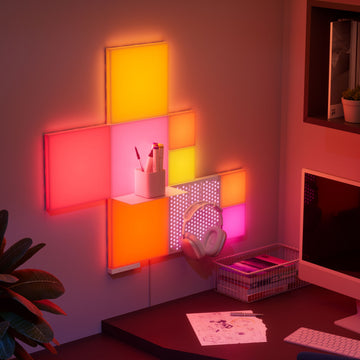
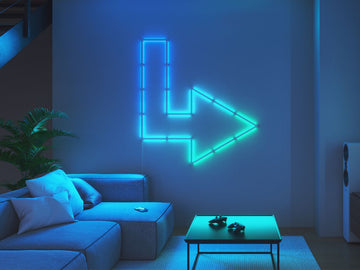
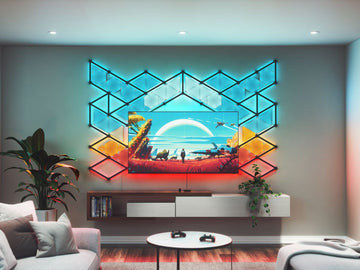
Nanoleaf Blocks
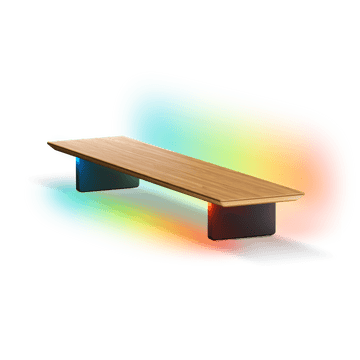
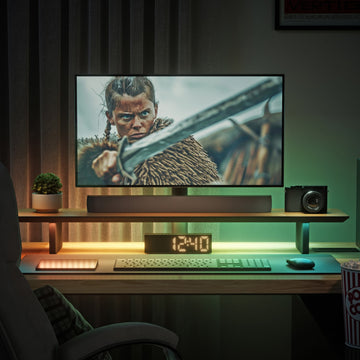
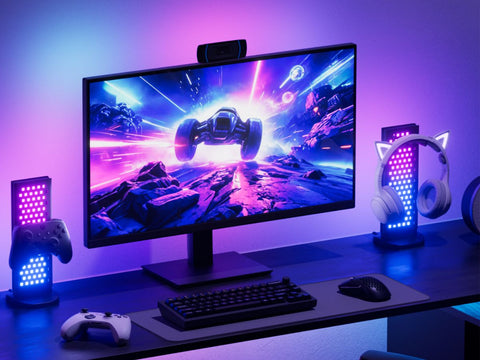
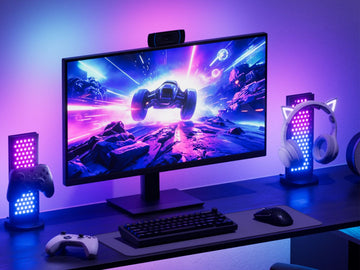
Nanoleaf Smart LED Monitor Stand
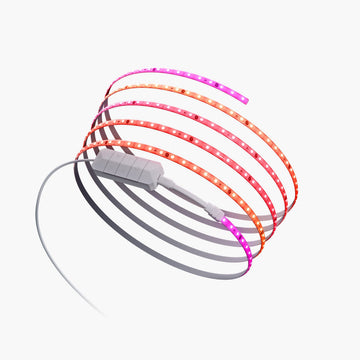

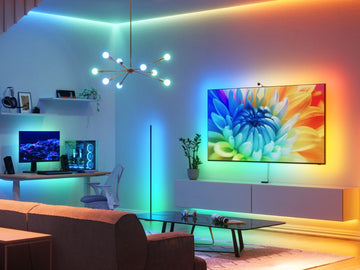
Nanoleaf Smart Multicolor Lightstrips
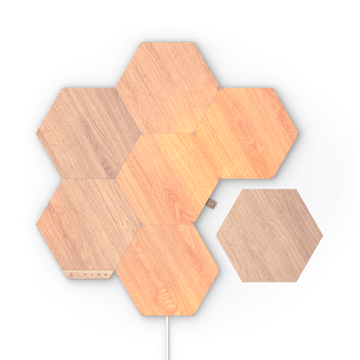
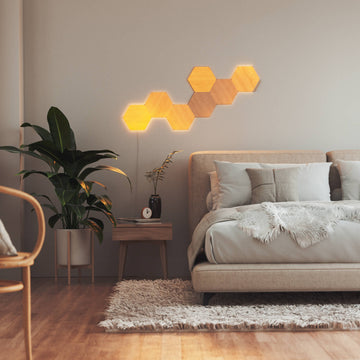
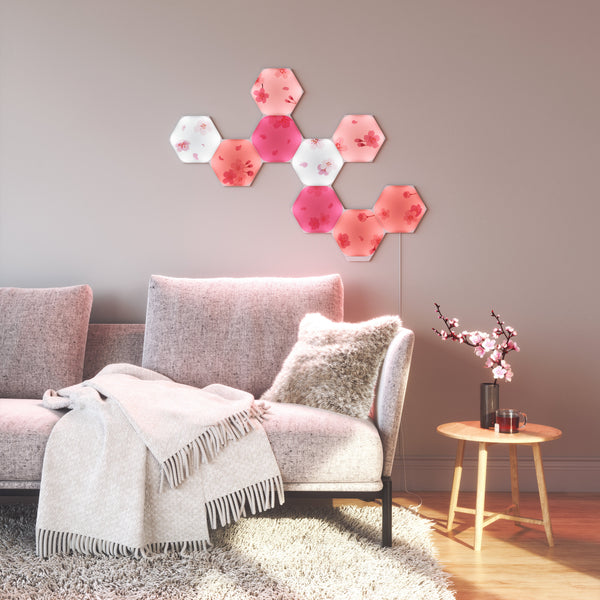
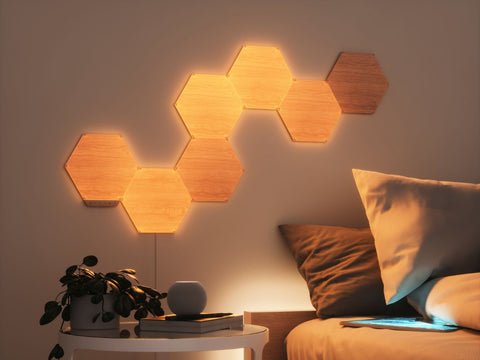
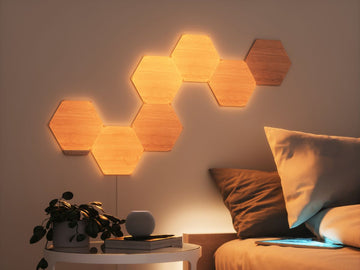
Nanoleaf Elements Starter Kits
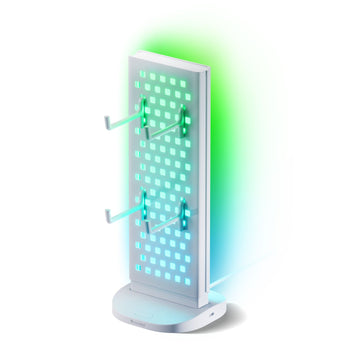
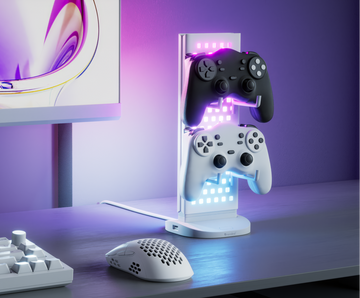
Nanoleaf Pegboard Desk Dock
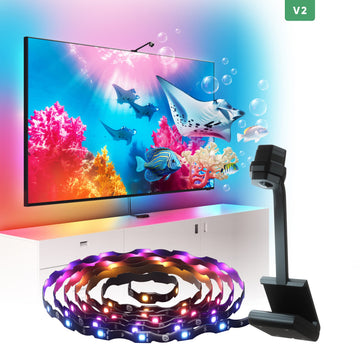
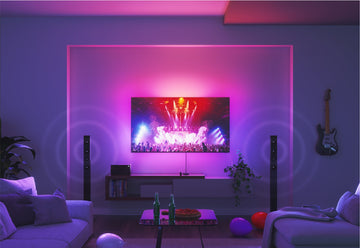
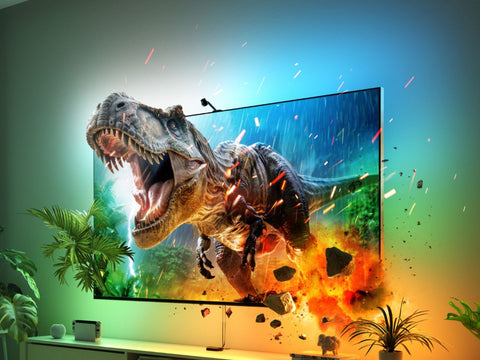
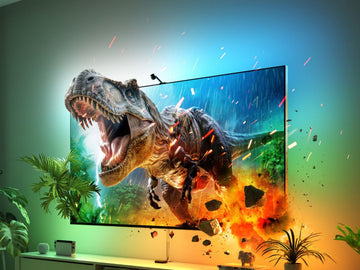
Nanoleaf 4D Screen Mirror

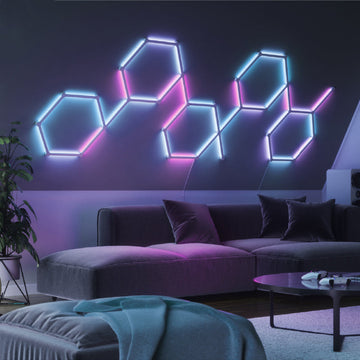
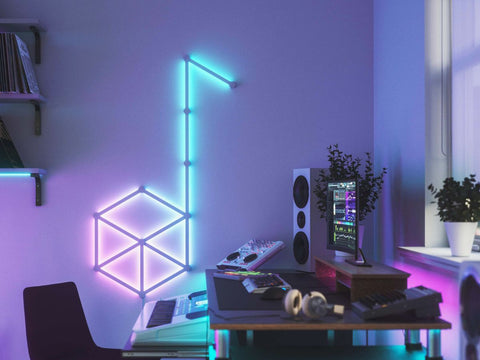
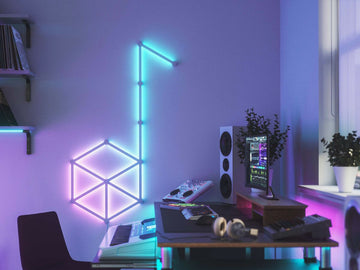
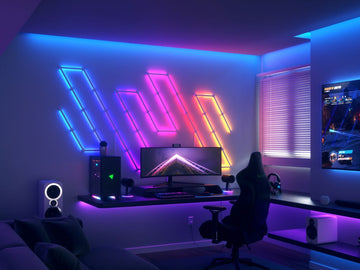
Nanoleaf Lines Starter Kits
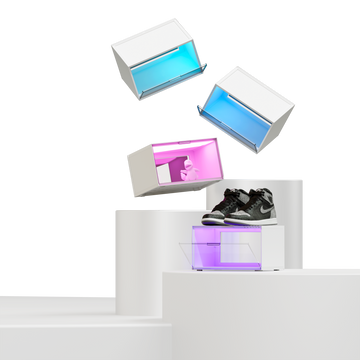

Nanoleaf EXPO LED Display Case
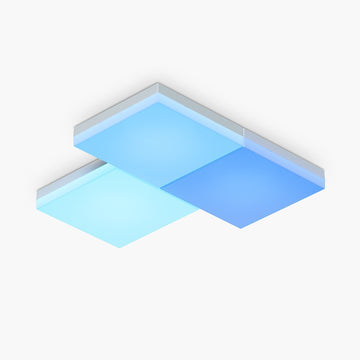
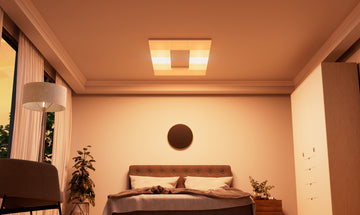
Nanoleaf Skylight
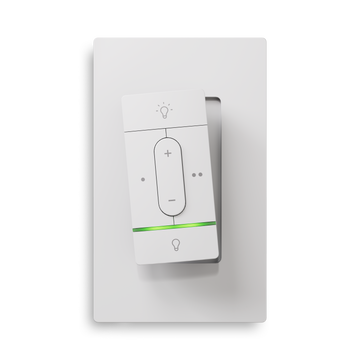
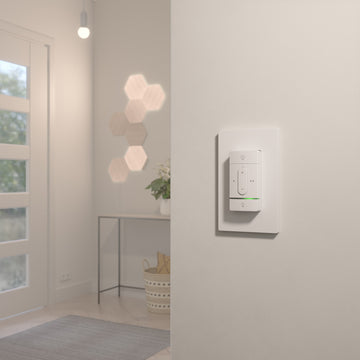
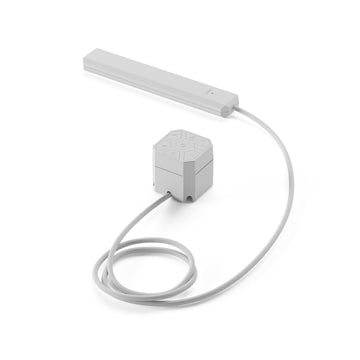
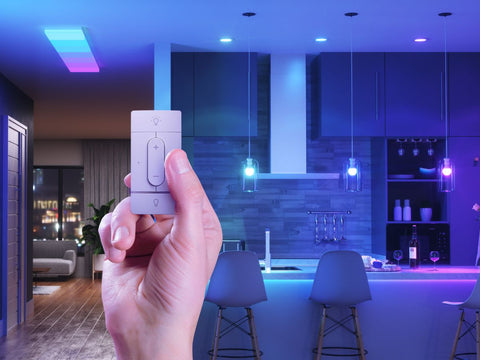
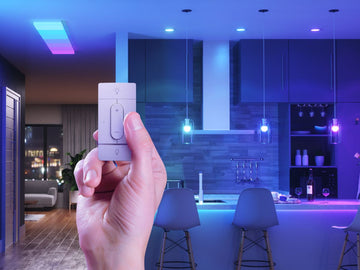
Nanoleaf Sense+ Smart Wireless Switch


Nanoleaf Smart Rope Light
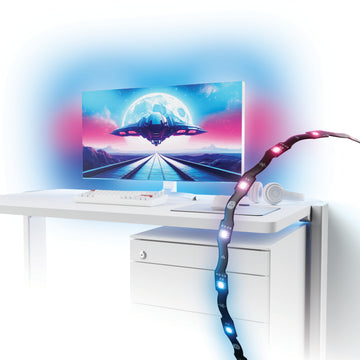
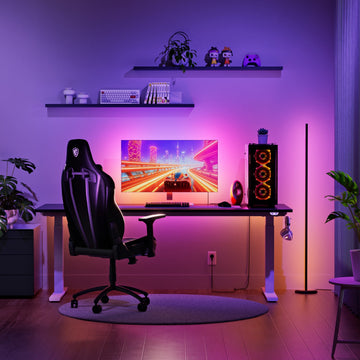
Nanoleaf PC Screen Mirror Lightstrip
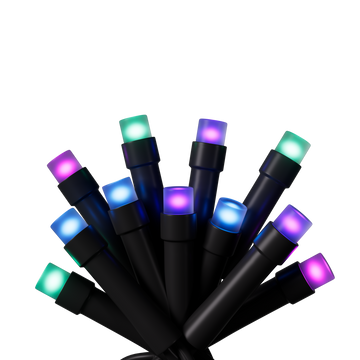

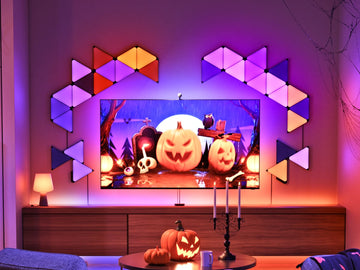
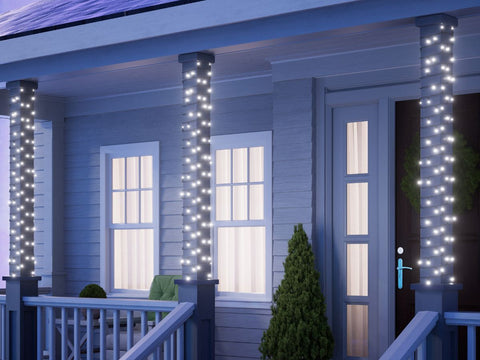
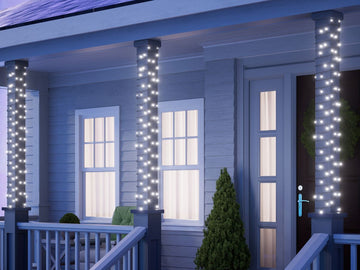
Nanoleaf Smart Holiday String Lights
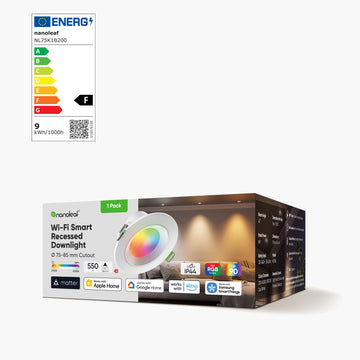
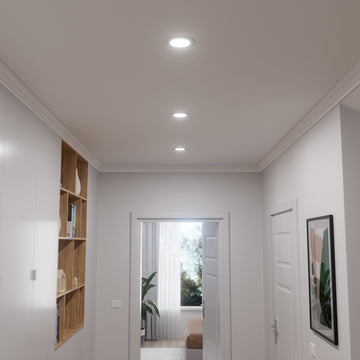
Nanoleaf Smart Recessed Downlight (Matter Over Wi-Fi)
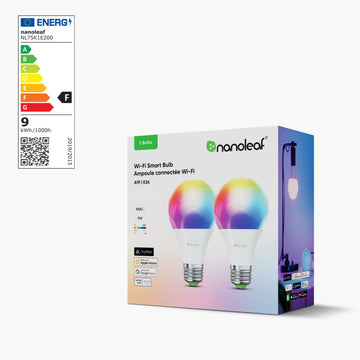

Nanoleaf Smart LED Bulbs
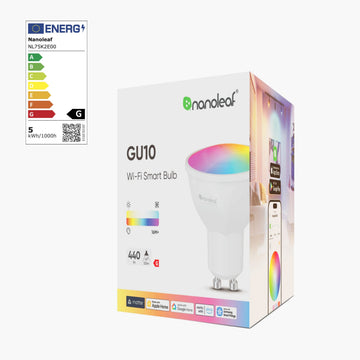
Nanoleaf Smart LED Spotlights
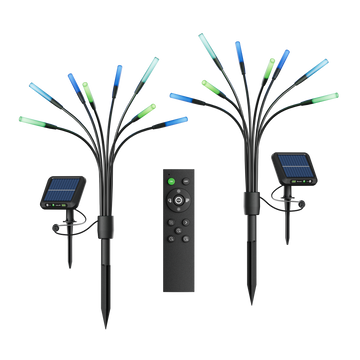
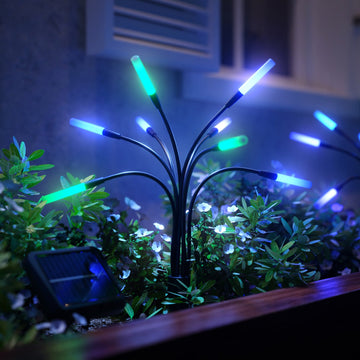
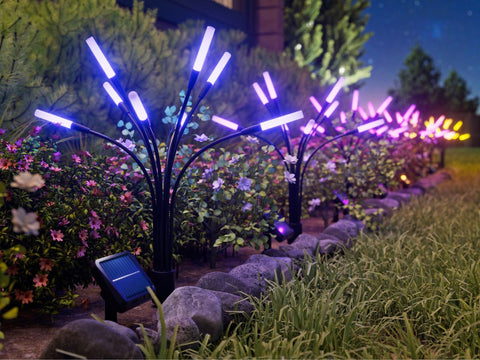
Nanoleaf Solar Garden Lights
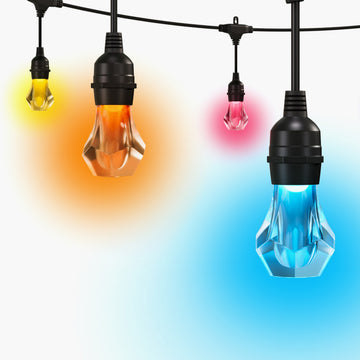
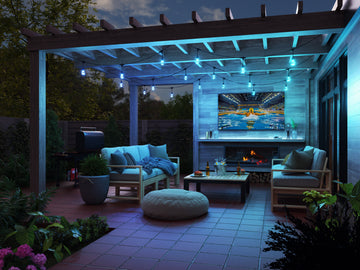
Nanoleaf Outdoor String Lights
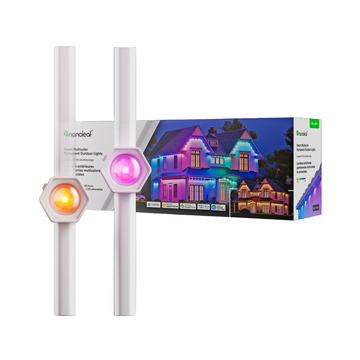

Nanoleaf Permanent Outdoor Lights | Starter Kits
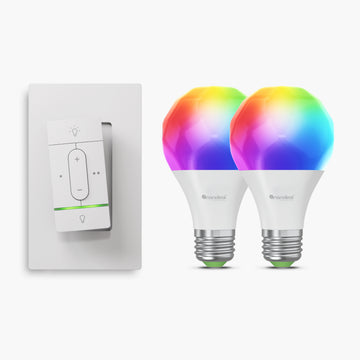
Nanoleaf Sense+ Wireless Switch + E27 Bulbs (2pk) Bundle
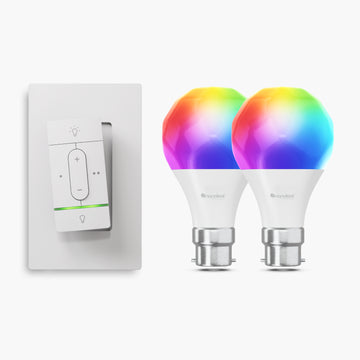
Nanoleaf Sense+ Wireless Switch + B22 Bulbs (2pk) Bundle
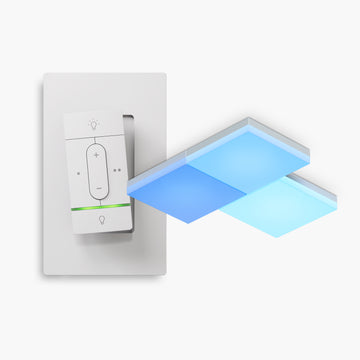
Nanoleaf Sense+ Wireless Switch with Skylight (3pk) Bundle
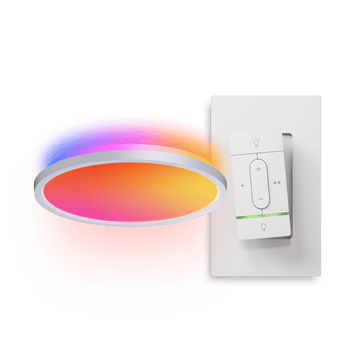

Nanoleaf Connected Bundle

Nanoleaf Ambient Bundle
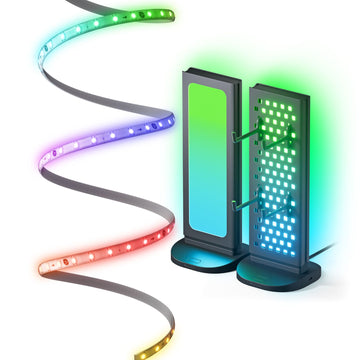
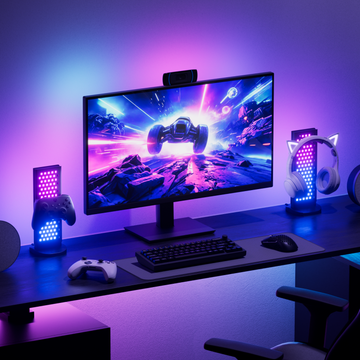
Nanoleaf Work-From-Home Saver Bundle
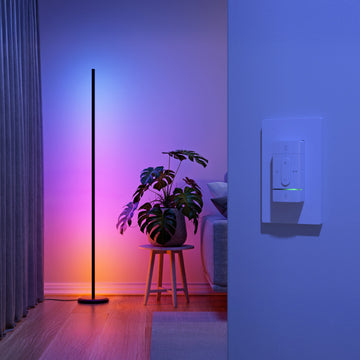
Sense+ Wireless Switch with Floor Lamp
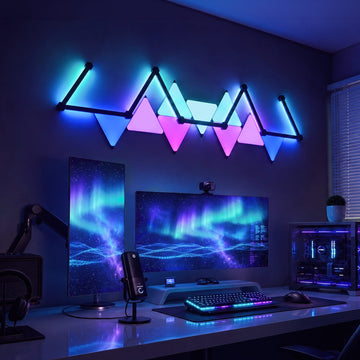
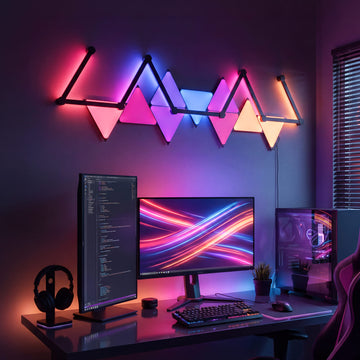
Nanoleaf Midnight Starfall Bundle
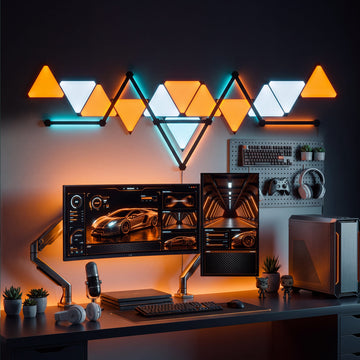

Nanoleaf Midnight Orbit Bundle
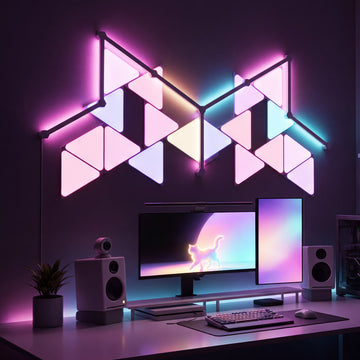

Nanoleaf Prismatic Fusion Bundle
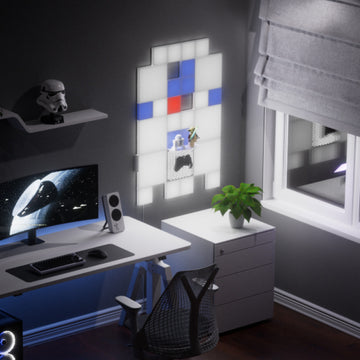
Nanoleaf Artoo Bundle
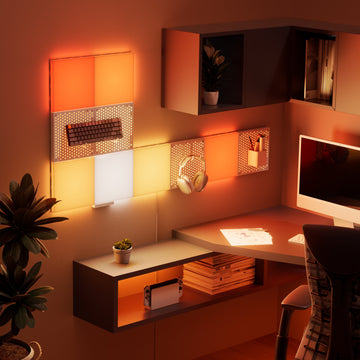
Nanoleaf Pipe Bundle
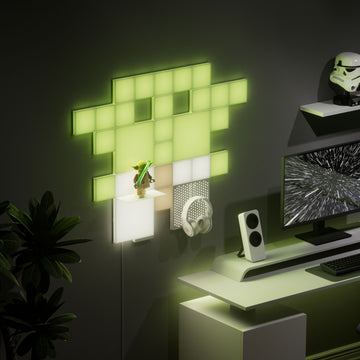
Nanoleaf Wise One Bundle
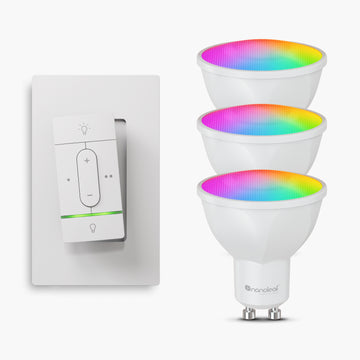
Nanoleaf Sense+ Wireless Switch + GU10 Bulbs (3pk) Bundle
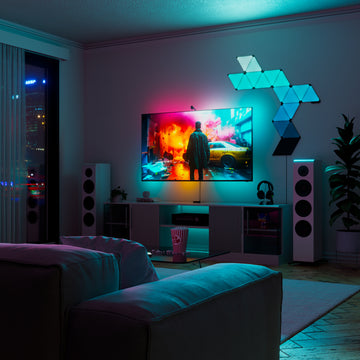
Nanoleaf Sneak Attack Bundle

Nanoleaf Small Baby Gu Bundle
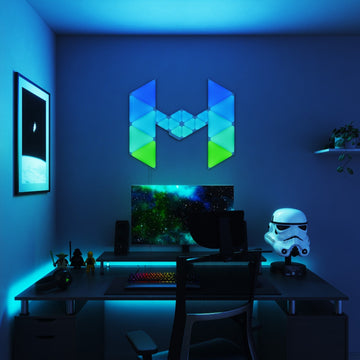
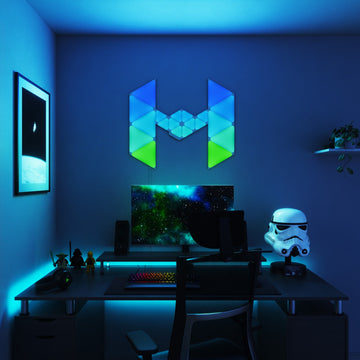
Nanoleaf Light Fighter Craft Bundle
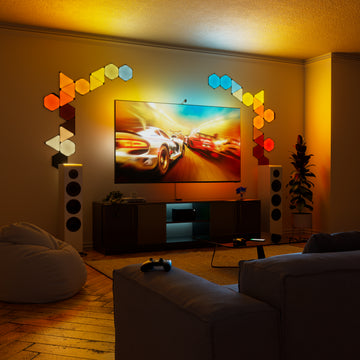
Nanoleaf Finish Line Bundle
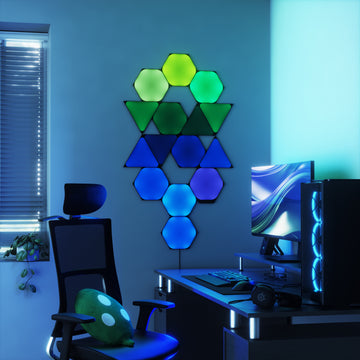
Nanoleaf Enigma Bundle
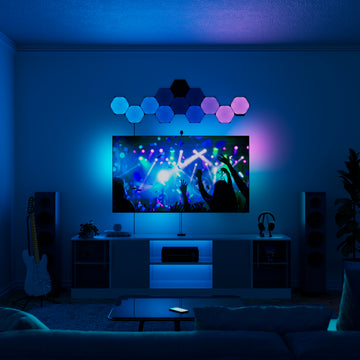
Nanoleaf Dreamscape Bundle
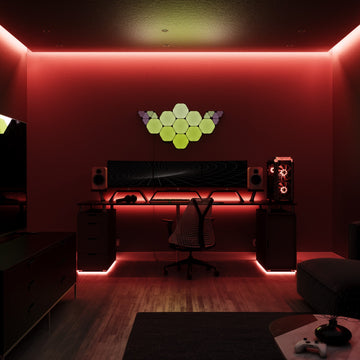
Nanoleaf Dark Small Baby Gu Bundle
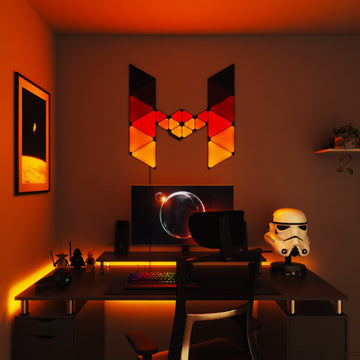
Nanoleaf Dark Fighter Craft Bundle
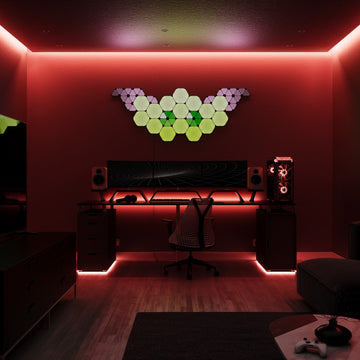
Nanoleaf Dark Big Baby Gu Bundle
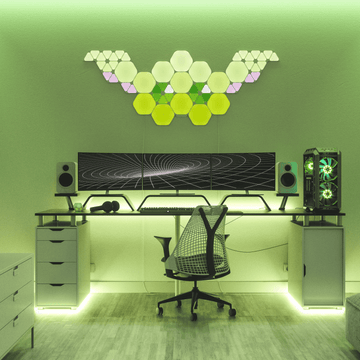
Nanoleaf Big Baby Gu Bundle
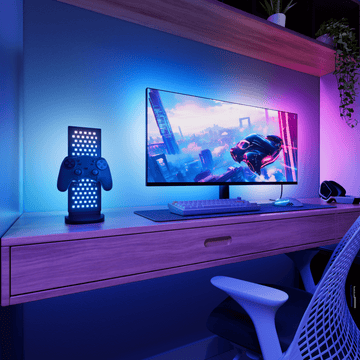
Nanoleaf Super Gamer Bundle
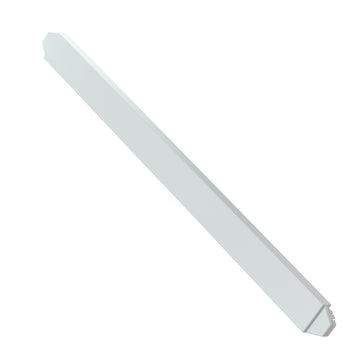

Nanoleaf Lines Expansion Packs

Limited time savings
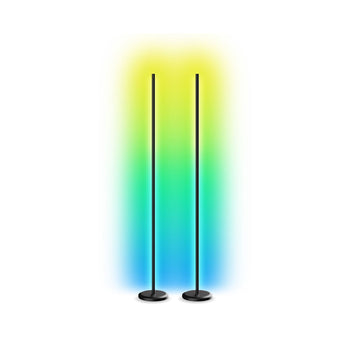 25% OFF
Matter Smart Multicolor Floor Lamp (Black, 2-Pack)
22% OFFSmart Multicolor Ceiling Light (Each)
82% OFFBlocks Combo XL Smarter Kit (Mixed Panels)
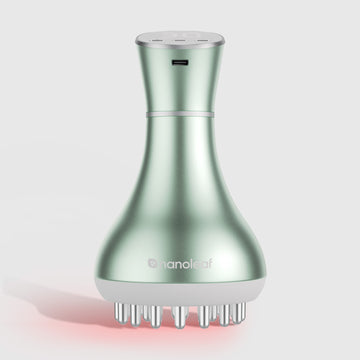 15% OFF
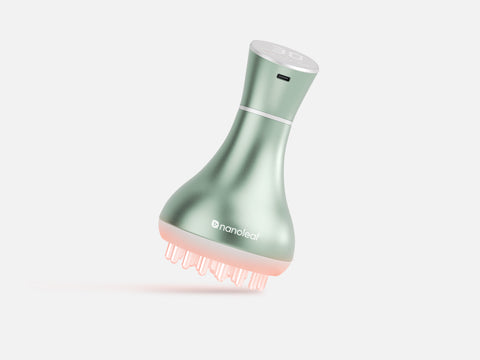
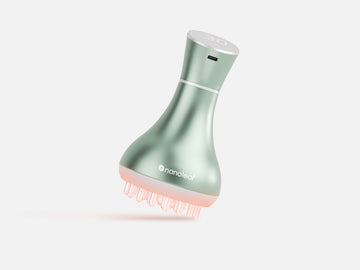
Nanoleaf Lymphatic Body Sculpting Massager
30% OFFPrismatic Fusion Bundle
35% OFFSmart Multicolor Permanent Outdoor Lights | Starter Kit (Cable Covers, 49ft/15m)
15% OFFNanoleaf x FANTAQI Smart LED Monitor Stand
30% OFFMatter Smart Multicolor Lightstrip
25% OFFMatter Smart Multicolor Floor Lamp (Black, 2-Pack)
82% OFFBlocks Combo XL Smarter Kit (Mixed Panels)
9% OFFThe Pipe Bundle
30% OFFMidnight Orbit Bundle
25% OFFPegboard Desk Dock (White, Each)
15% OFFNanoleaf x FANTAQI Smart LED Monitor Stand
22% OFFSmart Multicolor Ceiling Light (Each)
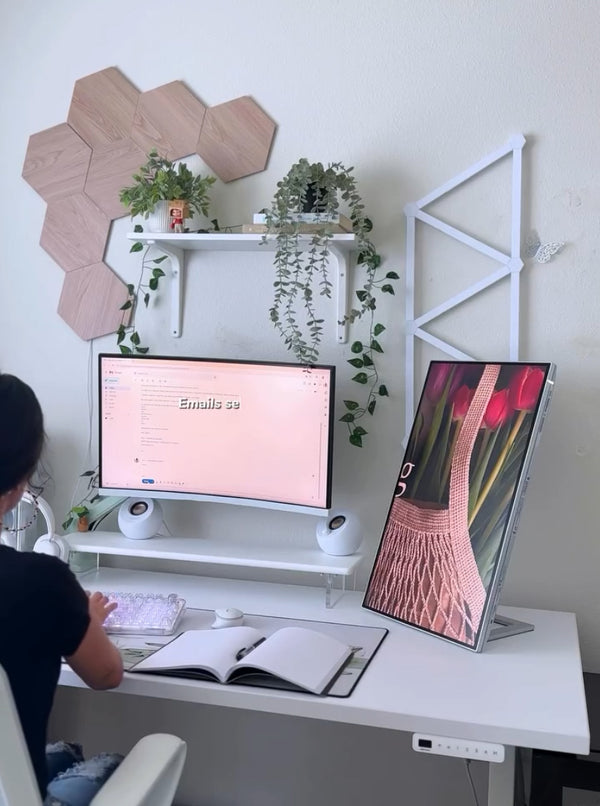
20% OFFElements Starter Kit: Hexagons (Birchwood, 7 Panels)
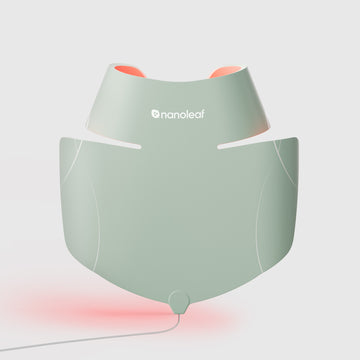 15% OFF
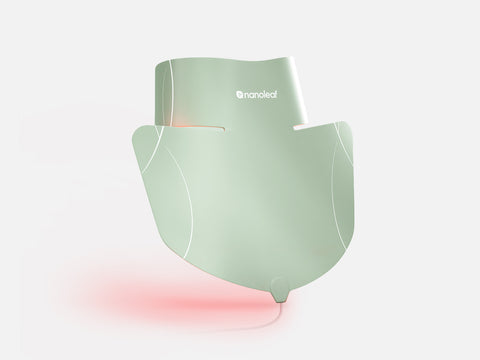
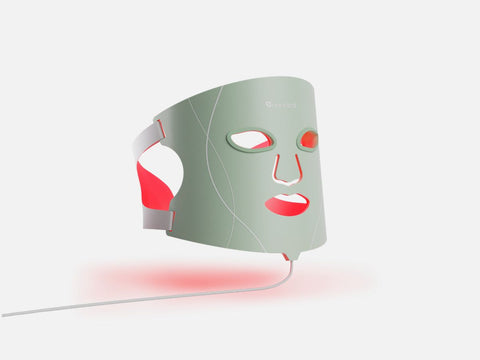
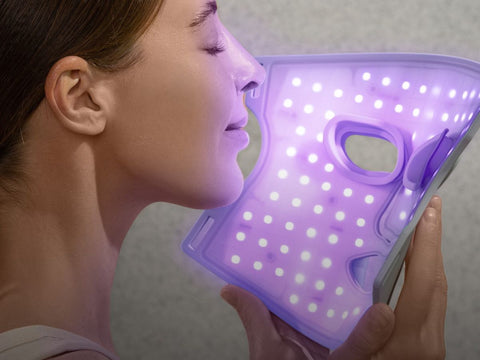
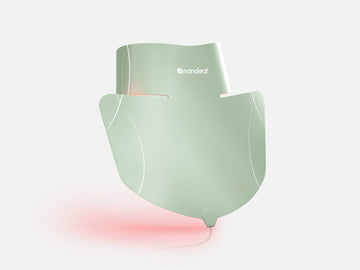
Nanoleaf LED Light Therapy Neck & Décolletage Mask
15% OFFNanoleaf Lymphatic Body Sculpting Massager
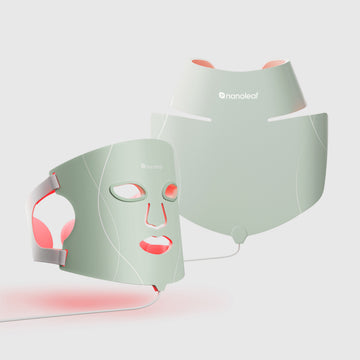 20% OFF
LED Face & Neck Mask Bundle
 25% OFF
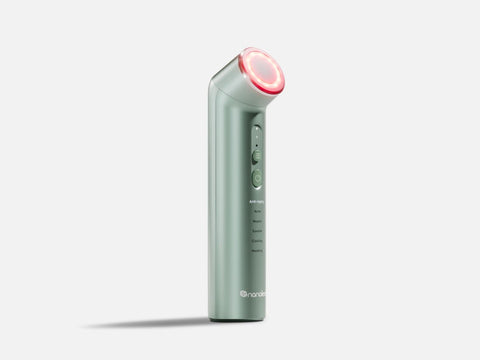
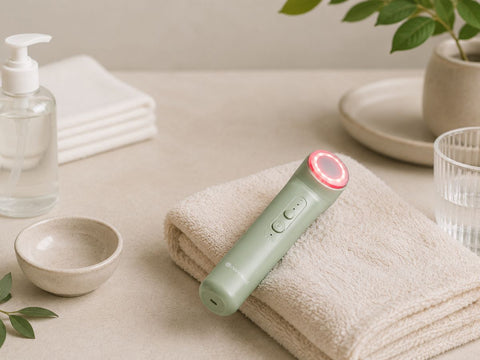
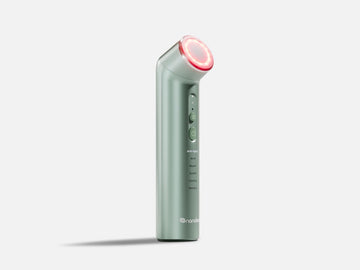
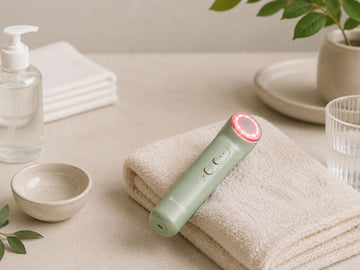
6-in-1 Light Therapy Wand
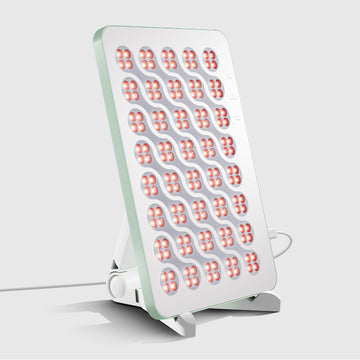 30% OFF
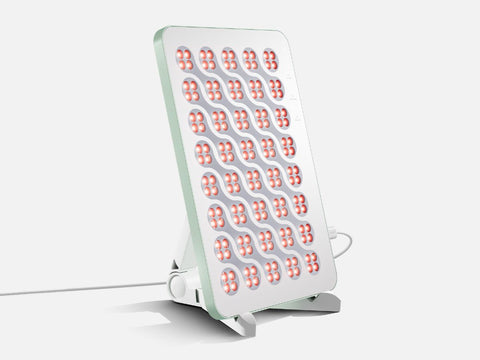
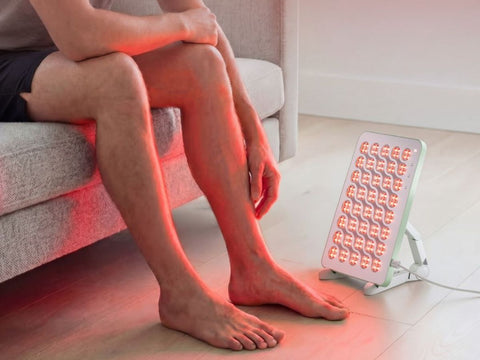
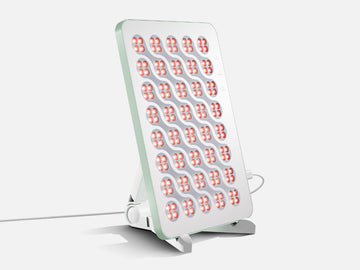
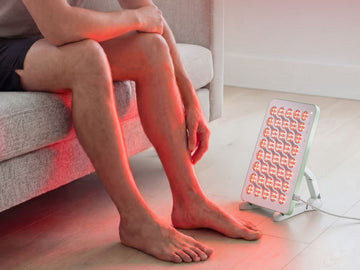
Red Light Therapy Panel (Type C Plug)
 20% OFF
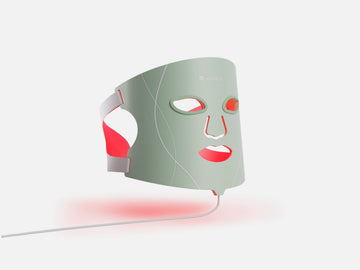
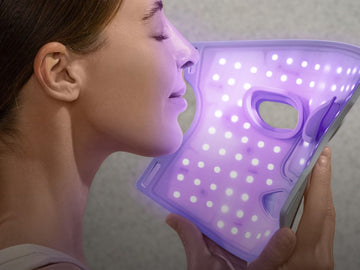
LED Light Therapy Face Mask
SHOP LIGHT THERAPY DEVICES
Shop All Nanoleaf Products
 25% OFF
Matter Smart Multicolor Floor Lamp (Black, 2-Pack)
22% OFFSmart Multicolor Ceiling Light (Each)
15% OFFNanoleaf Lymphatic Body Sculpting Massager
30% OFFPrismatic Fusion Bundle
35% OFFSmart Multicolor Permanent Outdoor Lights | Starter Kit (Cable Covers, 49ft/15m)
15% OFFNanoleaf x FANTAQI Smart LED Monitor Stand
30% OFFMatter Smart Multicolor Lightstrip
20% OFFNanoleaf 4D Screen Mirror + Lightstrip Kit, V2 (TVs & Monitors up to 65")
22% OFFSmart Multicolor Ceiling Light (Each)
15% OFFNanoleaf Lymphatic Body Sculpting Massager
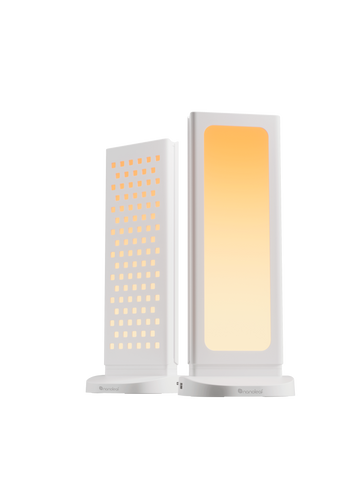 25% OFF
Pegboard Desk Dock (White, 2-Pack)
25% OFFPC Screen Mirror Lightstrip
30% OFFMatter Smart Multicolor Lightstrip
30% OFFSolar Garden Lights (2 Pack)
33% OFFSense+ Smart Wireless Switch
50% OFFMatter Wi-Fi Smart Bulb (A60 | E27, 2 Pack)
25% OFFMatter Smart Multicolor Floor Lamp (Black, 2-Pack)
22% OFFSmart Multicolor Ceiling Light (Each)
15% OFFNanoleaf Lymphatic Body Sculpting Massager
30% OFFPrismatic Fusion Bundle
35% OFFSmart Multicolor Permanent Outdoor Lights | Starter Kit (Cable Covers, 49ft/15m)
15% OFFNanoleaf x FANTAQI Smart LED Monitor Stand
30% OFFMatter Smart Multicolor Lightstrip
20% OFFNanoleaf 4D Screen Mirror + Lightstrip Kit, V2 (TVs & Monitors up to 65")
22% OFFSmart Multicolor Ceiling Light (Each)
15% OFFNanoleaf Lymphatic Body Sculpting Massager
25% OFFPegboard Desk Dock (White, 2-Pack)
25% OFFPC Screen Mirror Lightstrip
30% OFFMatter Smart Multicolor Lightstrip
30% OFFSolar Garden Lights (2 Pack)
33% OFFSense+ Smart Wireless Switch
50% OFFMatter Wi-Fi Smart Bulb (A60 | E27, 2 Pack)
Shop by Panel Collection
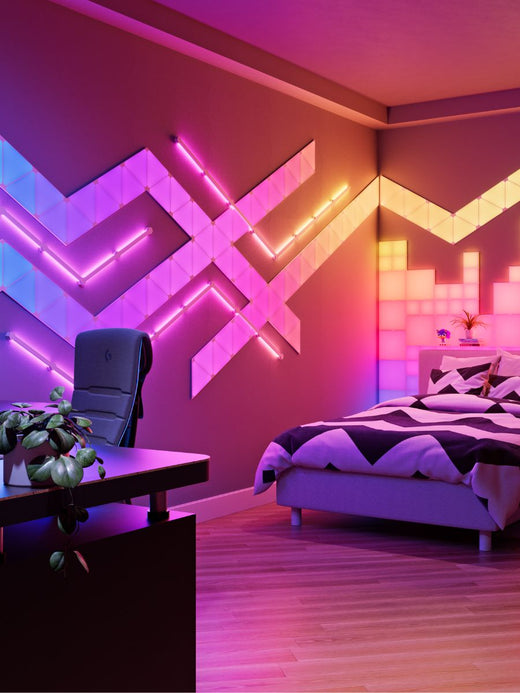 Shop All Wall Lights
SHOP PRODUCTS FOR WORK, PLAY & DISPLAY
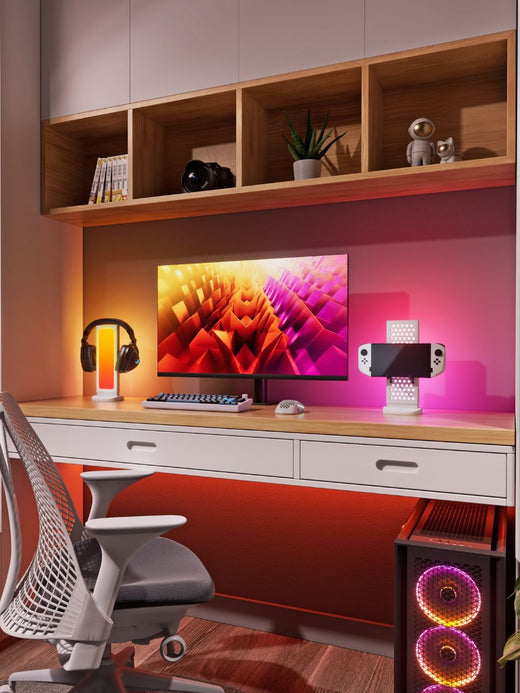 Shop All Screens & Spaces
SHOP LIGHTING FOR EVERY ROOM
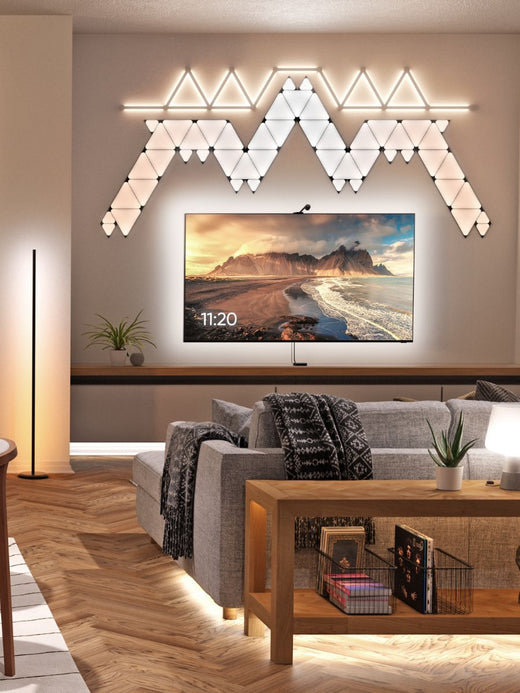 Shop All Home Lighting
SHOP OUTDOOR LIGHTING
 Shop All Outdoor Lighting
ACCESSORIES & PARTS
Home & Lighting Product Catalogue
SMART HOME ECOSYSTEMS
GAMING & DESKTOP INTEGRATIONS
Connectivity & Compatibility
UNDERSTAND HOW NANOLEAF USES AI
POWERED BY NANOLEAF
LEARN MORE ABOUT OUR WELLNESS TECHNOLOGY
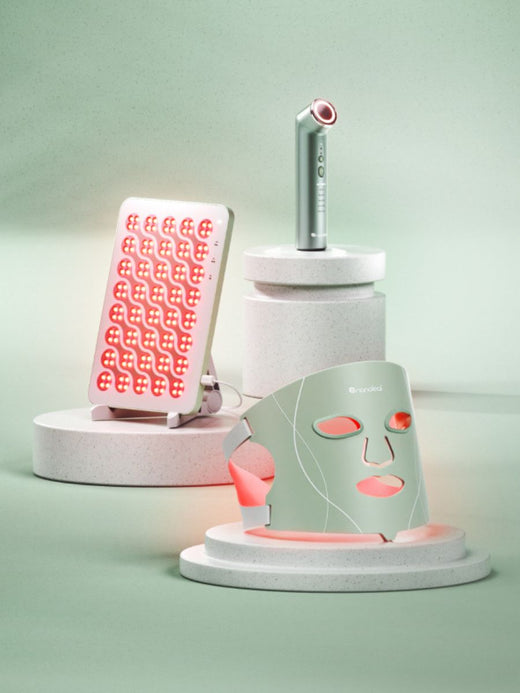 Shop Nanoleaf Wellness
Pre-Built Kits in Shapes, Lines, or Blocks
CUSTOMIZE BLOCKS YOUR WAY
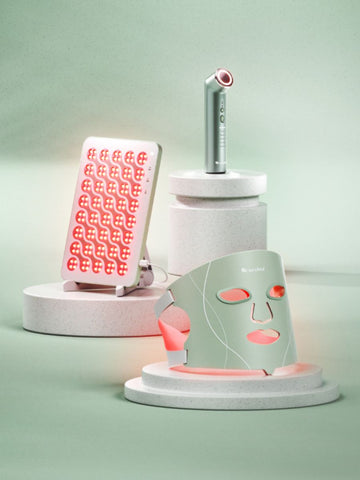
RED LIGHT THERAPY
25% OFFMatter Smart Multicolor Floor Lamp (Black, 2-Pack)
22% OFFSmart Multicolor Ceiling Light (Each)
15% OFFNanoleaf Lymphatic Body Sculpting Massager
30% OFFPrismatic Fusion Bundle
35% OFFSmart Multicolor Permanent Outdoor Lights | Starter Kit (Cable Covers, 49ft/15m)
15% OFFNanoleaf x FANTAQI Smart LED Monitor Stand
30% OFFMatter Smart Multicolor Lightstrip
20% OFFNanoleaf 4D Screen Mirror + Lightstrip Kit, V2 (TVs & Monitors up to 65")
22% OFFSmart Multicolor Ceiling Light (Each)
15% OFFNanoleaf Lymphatic Body Sculpting Massager
25% OFFPegboard Desk Dock (White, 2-Pack)
25% OFFPC Screen Mirror Lightstrip
30% OFFMatter Smart Multicolor Lightstrip
30% OFFSolar Garden Lights (2 Pack)
33% OFFSense+ Smart Wireless Switch
50% OFFMatter Wi-Fi Smart Bulb (A60 | E27, 2 Pack)
Shop Products for Work, Play & Display
 Shop All Screens & Spaces
Shop Lighting for Every Room
 Shop All Home Lighting
Accessories & Parts
Explore
Smart Home Ecosystems
Gaming & Desktop Integrations
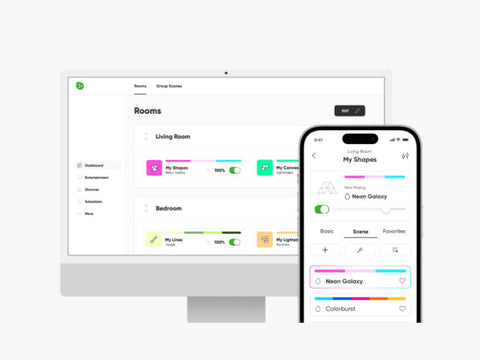
Nanoleaf Apps & Features
Understand How Nanoleaf Uses AI
Powered by Nanoleaf
Learn More About Our Wellness Technology
 Shop Nanoleaf Wellness
NEW TO LIGHT THERAPY?
UNDERSTAND EVERY WAVELENGTHS
BENEFITS & DEVICES
DEVICE CARE & WARRANTY
UNDERSTAND HOW NANOLEAF USES AI
LEARN MORE ABOUT FEATURES OR SHOP SMART LIGHTING

Save on Skincare Essentials
15% OFFNanoleaf LED Light Therapy Neck & Décolletage Mask
15% OFFNanoleaf Lymphatic Body Sculpting Massager
20% OFFLED Face & Neck Mask Bundle
25% OFF6-in-1 Light Therapy Wand
30% OFFRed Light Therapy Panel (Type C Plug)
20% OFFLED Light Therapy Face Mask
New to Light Therapy?
Understand Every Wavelengths
Benefits & Devices
Device Care & Warranty
Understand How Nanoleaf Uses AI
Learn More About Features or Shop Smart Lighting


 20% OFF
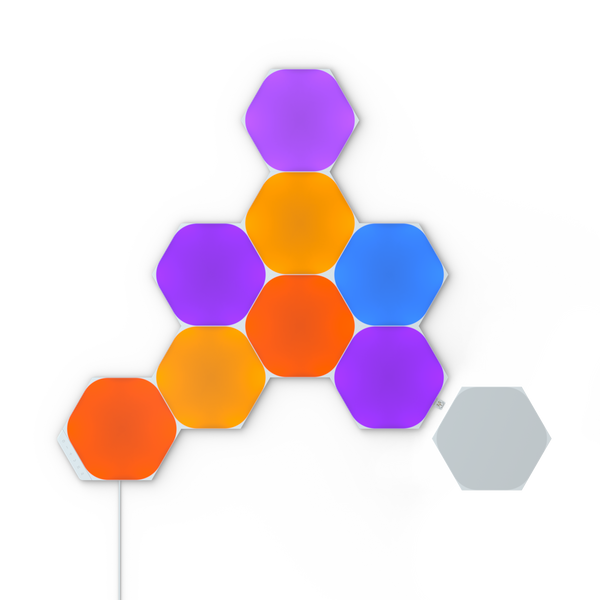
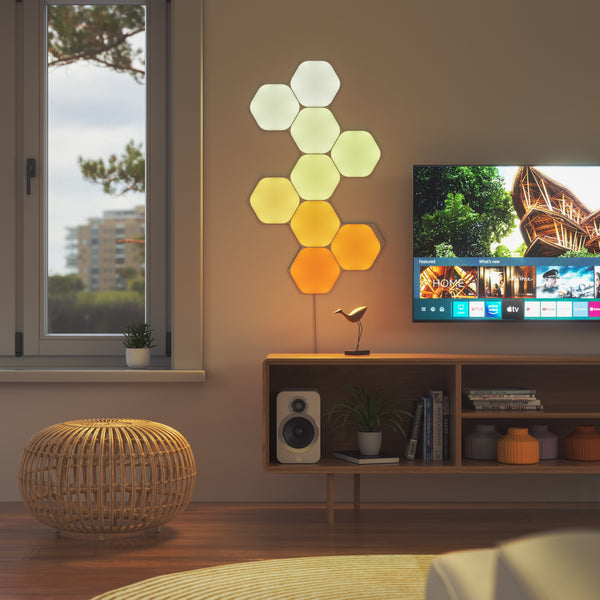
Nanoleaf Shapes

 20% OFF
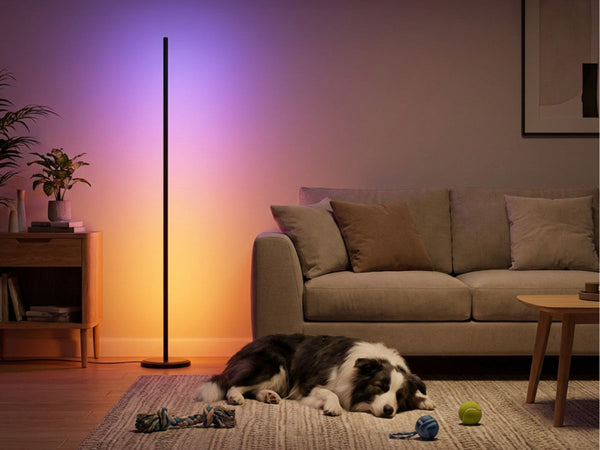
Nanoleaf Smart Floor Lamp
 22% OFF
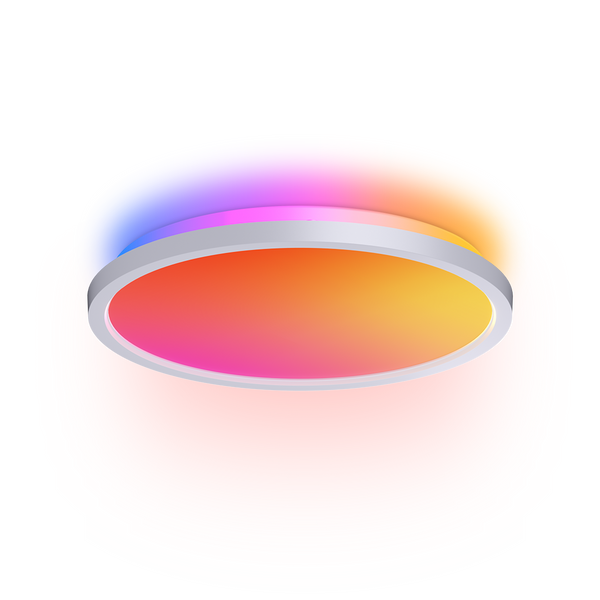
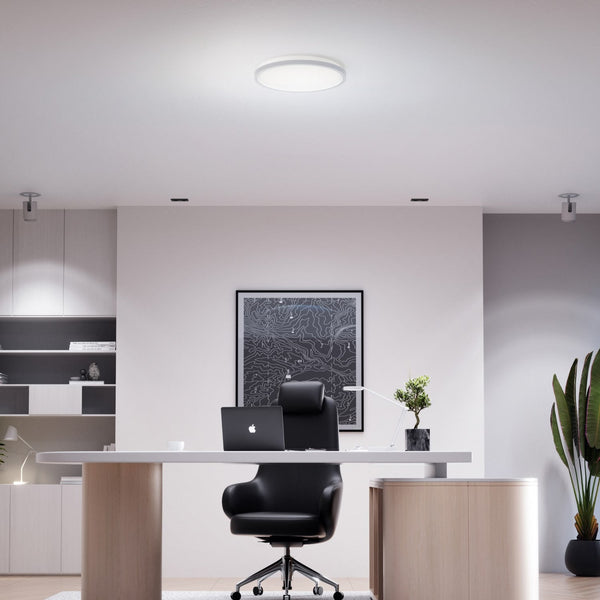
Nanoleaf Smart Ceiling Light

 20% OFF
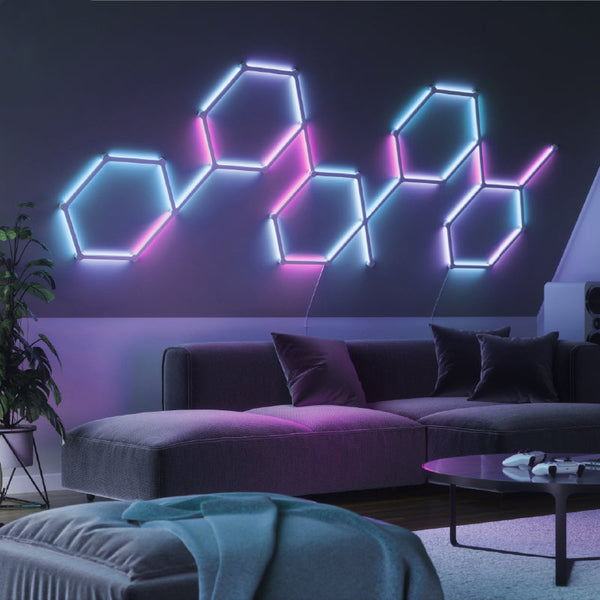
Nanoleaf Lines
 30% OFF
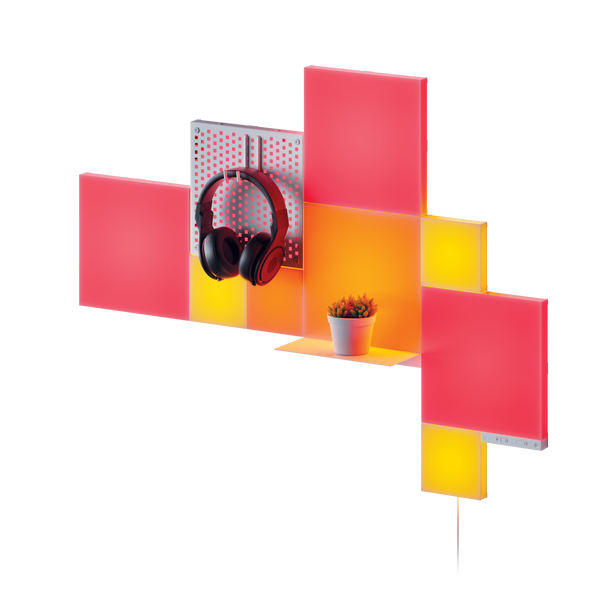
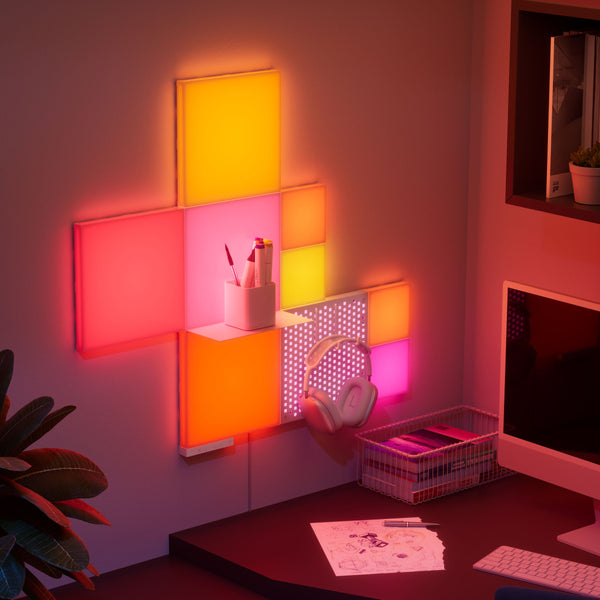
Nanoleaf Blocks
 20% OFF
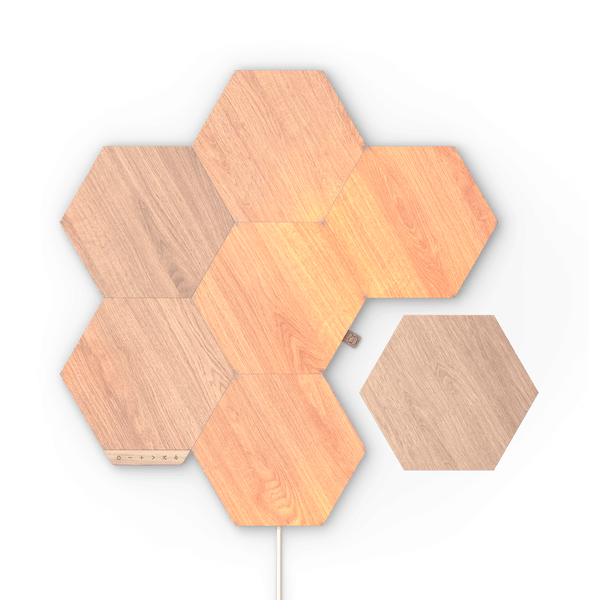
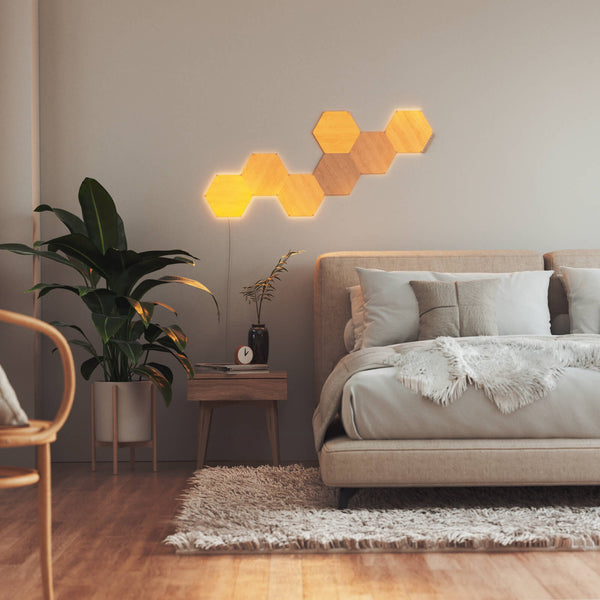
Nanoleaf Elements
 20% OFF
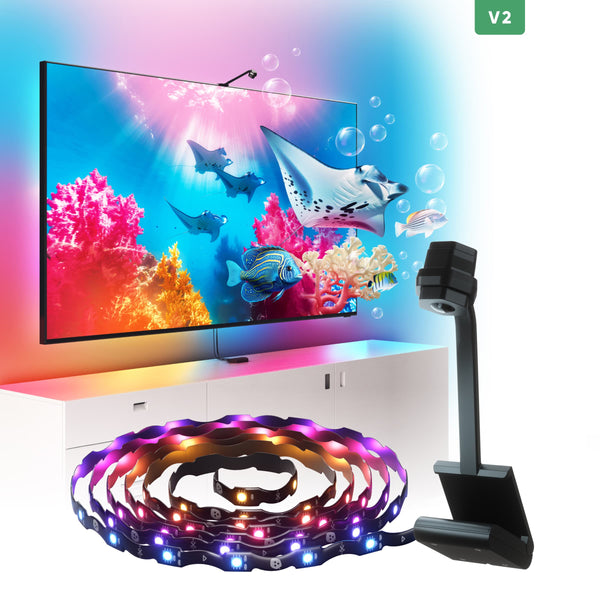
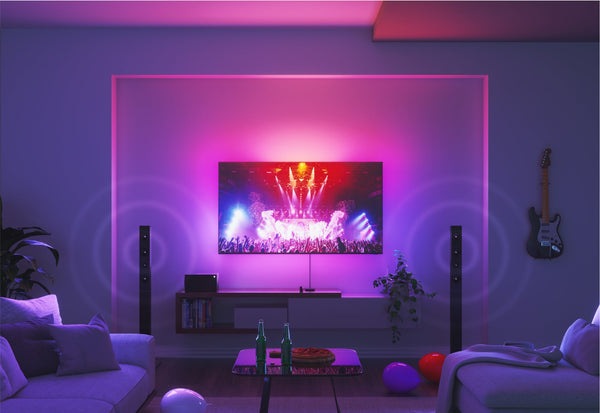
Nanoleaf 4D Screen Mirror
 25% OFF
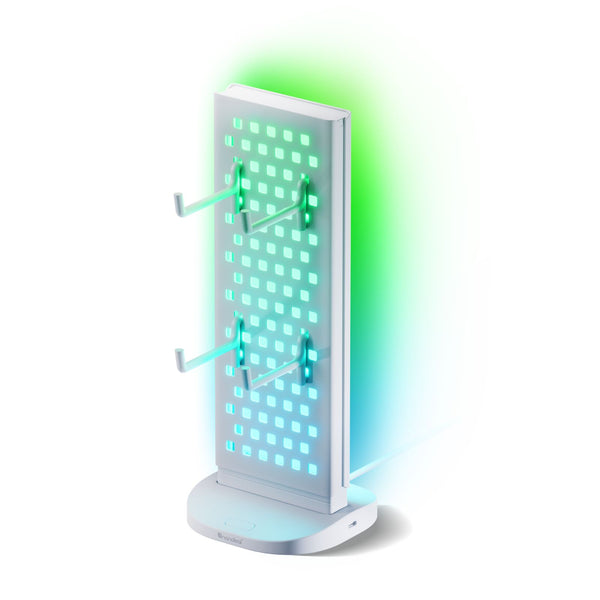
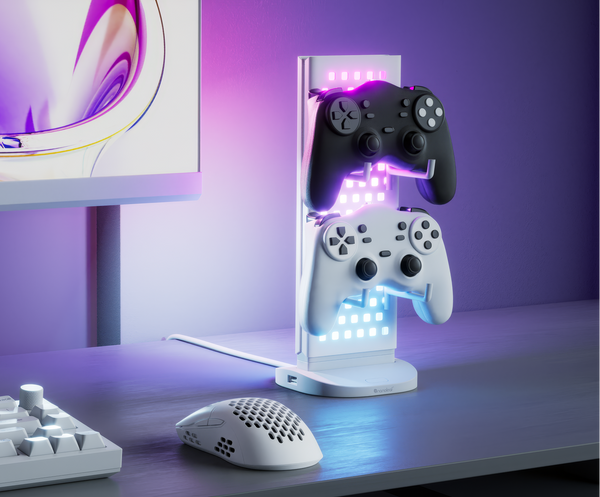
Nanoleaf Pegboard Desk Dock
 15% OFF
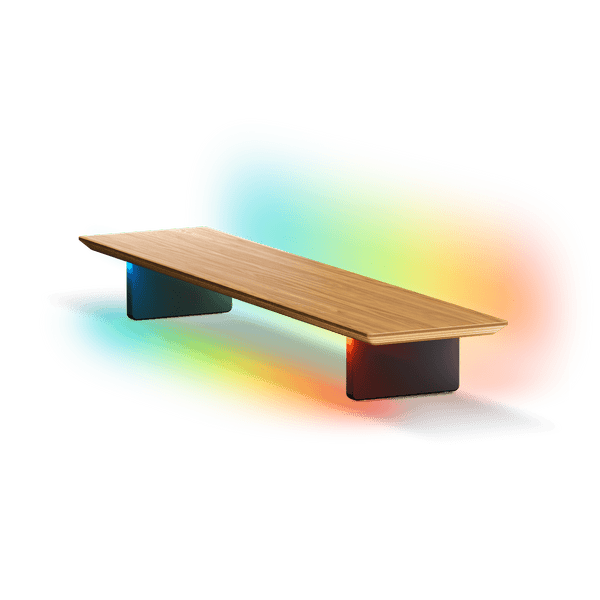
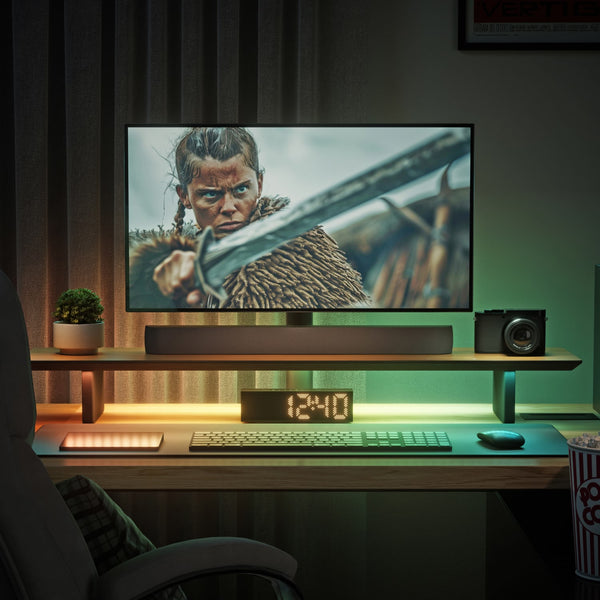
Nanoleaf Smart LED Monitor Stand
 50% OFF
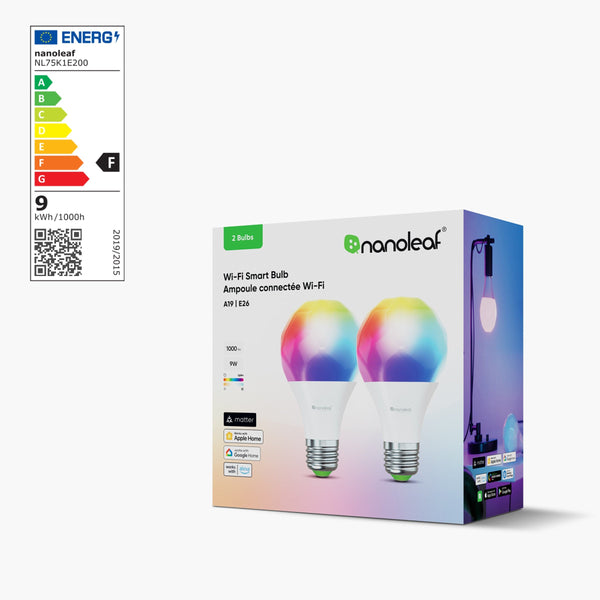
Nanoleaf Smart LED Bulbs
 25% OFF
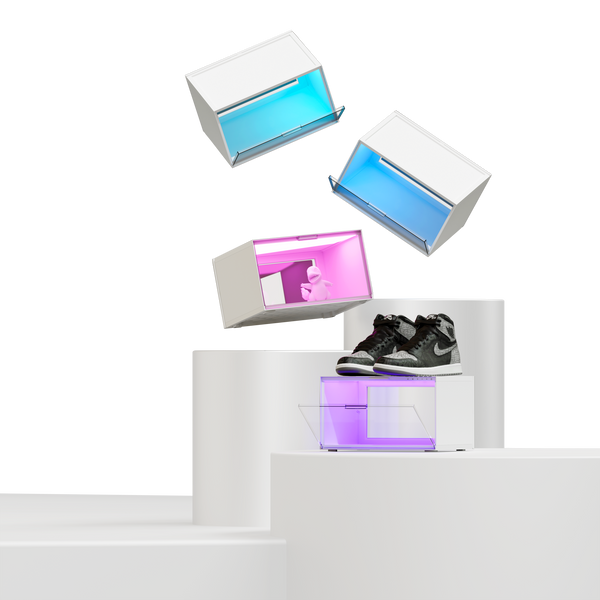
Nanoleaf EXPO LED Display Case
 35% OFF
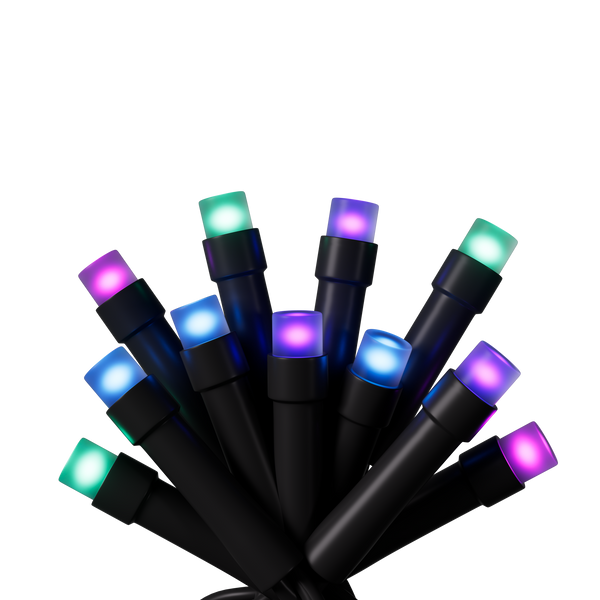
Nanoleaf Smart Holiday String Lights
Still have questions? Get in touch with our team